
LinkedIn Salesforce integration, built into one Chrome extension
When you land on someone's LinkedIn profile, the panel has already asked Salesforce about them. Already in your org? Then their notes and open tasks are right there, which saves you the usual detour through Salesforce search. Not there yet? One click creates the Lead or Contact, and the Account gets sorted in the same go. You stay on LinkedIn the whole time, and there's no Sales Navigator seat involved.
Setup, step by step
Add it to Chrome
It lives in the Chrome Web Store like any other extension. After you add it, a panel opens on LinkedIn profiles and company pages, and honestly that's the only place you'll notice it.
Connect Salesforce
Signing in happens on Salesforce's own screen, with OAuth 2.0 and PKCE under the hood, which means we never get to see your password. If you ever want to stop, revoking the app in Salesforce Setup ends it right then.
Choose the field for the LinkedIn URL
We'll ask which field should hold the LinkedIn link. Most orgs already have something suitable, so it's a pick from a dropdown and not a project for your admin. That link earns its keep later, because it's the surest way we know to recognize someone who's already in Salesforce.
Leads or Contacts?
This one really depends on how your team sells. Where reps qualify people before they count, new names belong in Leads, and that's how most Salesforce orgs already work. Smaller teams often feel the Lead stage is an extra hop and go straight to Contacts. We're fine either way. It's a setting, not a migration, so if your process changes next quarter nobody has to clean anything up.
Decide on the badges
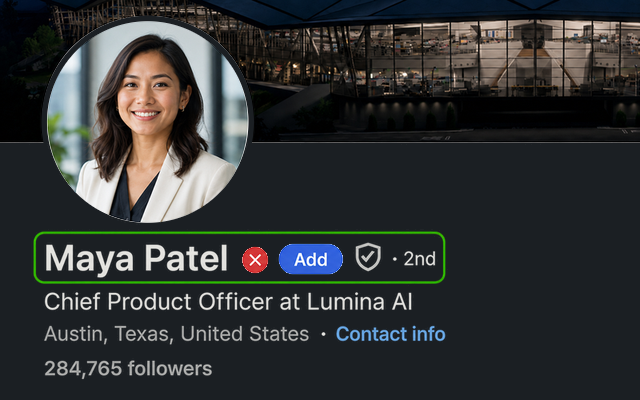
You'll notice a small badge next to people's names. Green means we found them in Salesforce. Yellow shows up when LinkedIn has a newer title or company than your record, and that's often the first hint someone has changed jobs. Red? Nobody on the team has saved them yet. If badges feel like clutter to you, Settings has a switch to hide them.
Work emails without another tool
When a record has no email, there's a sparkle icon in that empty field. Clicking it sends Ln2CRM looking for the person's work email, and once the address checks out it gets a green check. This comes with every plan, and even the free one includes 5 found emails a month. Phone numbers work differently, because they come through your own FullEnrich or Apollo key, so the provider bills you at their rate and we don't add a cent.
Prospect
That's the setup done. From here you just open the profiles you're working on, and each one shows either the Salesforce match with its notes and tasks or a card that's already filled in and waiting for Save.
Work the record from LinkedIn
Salesforce itself doesn't go anywhere, of course. Reports, forecasts and pipeline reviews still live there. What changes is the small stuff, the quick notes and next steps and corrections, which you end up doing next to the profile because that's where you already are.
Add a person to Salesforce in one click
Most of your clicks will land on + Person. It reads the profile, so the card arrives filled in and your part is mostly a quick sanity check before saving. If you've got a note from the call, it can go in right there. Salesforce gets the record with the LinkedIn link attached, which matters the next time anyone on the team opens this person.
Nothing to copy across, since the card opens with the profile details already on it.
Lead or Contact follows the choice you made in setup, so nobody has to remember the rule. The Account is matched or created in the same click.
Typing the company name, or pasting a Salesforce ID if you've got one, attaches the person to the Account you already have. It sounds minor, but duplicate Accounts pile up in Salesforce orgs faster than anyone expects, and this is where they usually start.
Need an email? The sparkle finds it. Phones are possible too, once your own FullEnrich or Apollo key is connected.
Manage the record without opening Salesforce
Manage is the tab where LinkedIn starts to feel like a corner of Salesforce. Once the profile is linked to its record, you'll be reading what's been logged before you type anything yourself.
Name works for the lookup, and so does a Salesforce ID if you happen to have one. After the profile is linked to the right Lead or Contact, it stays linked.
Open tasks and the notes before them show up next to the profile. It's very hard to send the same intro twice when your colleague's note from last month is sitting right there.
If something needs fixing or adding, it's done from the panel, and you're back on LinkedIn in well under a minute.
Spot who is already in Salesforce while you scroll
Search results are where this pays off. Every profile, company page and conversation you scroll past gets marked, so you can sort a long list without checking a single name in Salesforce.
Already a Lead or Contact in your org, and the badge opens the record.
Nobody on the team has saved them, so if they look right for you, they're fair game.
There's a record, but the title or company on LinkedIn no longer matches Salesforce. The panel shows you both, and one click updates Salesforce.
What lands where in Salesforce
Here's how LinkedIn details map onto standard Salesforce objects. You confirm it once during setup, and the LinkedIn URL is what we rely on to spot a person who's already in your org.
| From the LinkedIn page | Salesforce object | Field |
|---|---|---|
| Full name | Lead or Contact | FirstName, LastName |
| Current role | Lead or Contact | Title |
| Company | Lead or Account | Company / Account.Name |
| Location | Lead or Contact | City, Country |
| Profile URL | Lead or Contact | Any field you pick from a dropdown, used for duplicate matching |
| Company page URL | Account | Any field you pick from a dropdown |
| Email and phone | Lead or Contact | Email, Phone (email found by Ln2CRM; phone via your own FullEnrich or Apollo key) |
| Your notes | Lead, Contact, or Opportunity | Note attached to the record |
| Follow-up | Task | Subject, ActivityDate, linked to the record |
Under the hood Ln2CRM talks to the objects reps touch every day, from Leads and Contacts through Accounts and Opportunities to Tasks, Events and EmailMessage. The one requirement is API access on your edition. Enterprise, Unlimited and Developer include it, while Professional needs the API add on first, which catches a lot of Professional orgs by surprise.
For Salesforce admins
If you look after the org, this bit's for you. Ln2CRM signs in through standard OAuth and acts as whoever connected, nothing more. What follows is what security reviews usually ask us, plus how to approve the app ahead of time if your org restricts connected apps.
Reps go through the normal Salesforce login and consent screen. We end up holding a scoped token, never a password, and if you revoke it in Setup the connection stops immediately.
It works with the standard objects a rep already uses, always as the person who connected and inside their permissions. So if a rep can't see a record in Salesforce, Ln2CRM can't see it on their behalf either.
Nothing runs on its own. We read a profile because someone opened it, and we write to Salesforce because someone clicked Save, which also means there are no bulk exports and no crawling of pages nobody looked at.
Records are created and edited right in your Salesforce by the person working them. And we don't sell contact data, full stop.
This takes one visit to Salesforce Setup. Most admins find the Ln2CRM connected app under Connected Apps OAuth Usage, or under Manage Connected Apps, and allowlist it there. With Permitted Users set to “Admin approved users are pre-authorized”, the only thing left is deciding which Profiles or Permission Sets get access. After that, approved reps connect with a single click and never see an extra prompt.
If you ever saw Cross-org OAuth flows are not supported on our connect screen, that was us, not your org. A Connected App lives in one Salesforce org, and until its policy allows other orgs, nobody outside can sign in. A prospect hit it in August; we fixed the app setting and companies outside ours have connected since. The other question we get: what happens after you convert a Lead. Salesforce stores the new Contact's id on the old Lead, we read it, and the badge follows you to the Contact.
Got a security questionnaire to fill in, or a question this page doesn't answer? Email admin@ln2crm.com and a real person replies.
How sales teams use it day to day
What it costs
Salesforce doesn't cost extra, since one plan covers any CRM you connect. Every limit is on the pricing page.
You get 15 Create and 15 Manage actions every month, which is plenty to see whether it fits, and we never ask for a card.
Built for people who prospect every day, so the limits go up to 500 Create and 500 Manage a month. Paid yearly, that's $13 a month.
Pro adds the AI copilot, which drafts from your CRM history rather than from thin air, plus a free crm2crm seat. Paid yearly, it's $18 a month.
FAQ
How do I add a LinkedIn profile to Salesforce?
Do I need Sales Navigator for this to work?
Which Salesforce editions and objects are supported?
How do I connect it to Salesforce?
Is the Salesforce connection safe?
How does duplicate prevention work?
Is there really a free tier?
Put Salesforce inside LinkedIn
Installing takes about a minute, and connecting Salesforce is one more. By the time your coffee is drinkable, the first prospect from LinkedIn is usually sitting in Salesforce.