
LinkedIn HubSpot integration, built into one Chrome extension
Open any LinkedIn profile and see whether the person is already a HubSpot Contact, with their notes, tasks, and deal history. New prospect? One click creates the Contact, with the Company associated and properties filled in. No tab switching, no copy-paste, no Sales Navigator seat.
Why HubSpot users need this on LinkedIn
HubSpot’s free CRM put a Contact record in front of millions of sales and marketing teams, but it did not put it inside LinkedIn, where the prospecting actually happens. HubSpot’s own LinkedIn features sit behind paid Sales Hub seats, so most sales people still paste names into the search bar and hope they are not creating a second Contact.
Ln2CRM adds the layer HubSpot leaves out. On any profile it shows whether the person is already a Contact, which Company they are associated with, and what the last touch was, then lets you create the Contact, associate the Company, and log a Task in one click, on free and paid portals alike.
How the setup works
Install the extension
Add Ln2CRM from the Chrome Web Store. The extension opens as a sidebar on LinkedIn profile and company pages.
Connect HubSpot
Connect HubSpot with a single OAuth approval. You sign in on HubSpot’s own screen, approve the scopes once, and Ln2CRM is ready. It never sees your password and the connection is revocable from HubSpot.
Pick where the LinkedIn URL lives
Ln2CRM stores the profile URL in a HubSpot field you pick from a dropdown. Any existing field works, no new custom objects needed, and it becomes your dedupe key.
New people become a Contact
HubSpot treats everyone as a Contact, so there is no Lead-versus-Contact choice. Ln2CRM creates the Contact and associates the Company in the same click, with a Deal if you want one.
Keep or hide the on-page badges
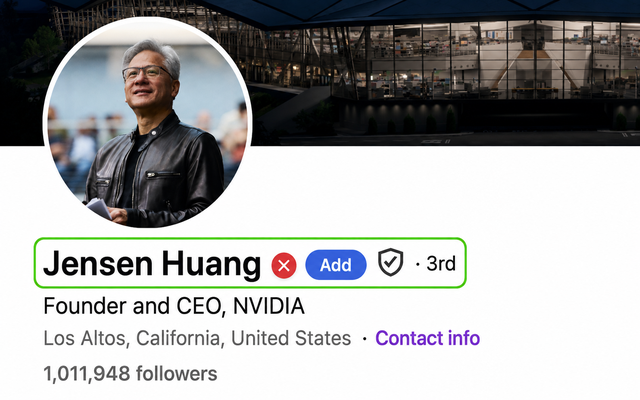
The green check and red cross on profiles are on by default. Leave them on for fast triage, or switch them off in Settings if you prefer a clean page.
Optional: plug in enrichment
Have a FullEnrich key? Add it in Settings and the sparkle icon fills missing emails and phones. You pay your provider directly, Ln2CRM adds no markup.
Prospect
Open any LinkedIn profile. The extension shows the HubSpot match with notes and tasks, or offers to create the record in one click.
Manage without leaving LinkedIn
From then on, search, link, update, and log your HubSpot records straight from the sidebar. Your CRM lives inside LinkedIn, no tab switching.
Add a person to HubSpot in one click
Open a LinkedIn profile and hit + Person. Ln2CRM reads the page and prefills the card, so you confirm the Contact instead of retyping it. Add a note, save, and it lands in HubSpot with the Company associated and the LinkedIn URL attached.
Name, job title, location, and the LinkedIn URL are pulled in automatically. Nothing to copy-paste.
New people land as a HubSpot Contact, and the Company is created or associated in the same click. Add a Deal on the spot when the conversation is real.
Type the company name or paste its HubSpot ID, and the person attaches to that existing Company instead of a duplicate.
Add them by hand, or click the sparkle to pull them in with your own enrichment key.
Manage the record without opening HubSpot
The Manage tab turns the LinkedIn page into a working HubSpot view. Search any Contact, Company, or Deal, link the profile to the record, and see the associated Company, open Deals, and Tasks before you write a word.
Search by name or ID and link the profile to the matching Contact once, so it stays recognized.
Open tasks, past touches, and the full note timeline sit next to the profile, so you never double-message or forget a promise.
Add a note, schedule the next task, or change fields right from the panel. Twenty seconds, and the record stays current.
Spot who is already in HubSpot while you scroll
You do not even need to open the panel. Ln2CRM marks profiles and company pages as you scroll, so you can run down a list of search results and spot who is already a HubSpot Contact at a glance.
The person is already in HubSpot. Click the badge to open their record and history.
Nobody on your team has captured them yet, so you see at a glance who is worth adding.
One Contact, the whole HubSpot context
HubSpot’s power is in its associations, and the sidebar surfaces them. When a profile matches a Contact, you see the account context before you type a word.
See the Contact’s associated Company and open Deals right on the profile, so you know the account before you reach out.
No Sales Hub seat required. Create Contacts, associate Companies, and log Tasks on any HubSpot tier through the CRM API.
Matching by LinkedIn URL and email means the same person does not become two Contacts owned by two sales people.
What lands where in HubSpot
Here is exactly how the LinkedIn data maps to HubSpot objects and fields. You confirm the mapping once during setup, and the LinkedIn URL becomes your dedupe key.
| From the LinkedIn page | HubSpot object | Field |
|---|---|---|
| Full name | Contact | firstname, lastname |
| Current role | Contact | jobtitle |
| Company | Company | name |
| Location | Contact | city, country |
| Profile URL | Contact | Any property you pick from a dropdown, used for duplicate matching |
| Company page URL | Company | Any property you pick, or domain |
| Email and phone | Contact | email, phone (manual or via your own enrichment key) |
| Your notes | Contact, Company, or Deal | Note attached to the record |
| Follow-up | Task | Title, due date, associated with the record |
Supported objects: Contact, Company, Deal, Task, and Note. Works with HubSpot Free, Starter, Professional, and Enterprise through the CRM API.
For HubSpot admins
Ln2CRM connects to your HubSpot over standard OAuth, acts only as the signed-in user, and never stores your HubSpot data. Here is what your admin needs to know.
Users connect through HubSpot’s own login and consent screen and approve the scopes once. Ln2CRM keeps a scoped, revocable token, never a password. Revoke it anytime under Connected Apps and the connection stops immediately.
Reads and writes Contacts, Companies, Deals, Tasks, and Notes, only as the connecting user and within that user’s HubSpot permissions. It cannot see or change anything the user cannot.
Nothing runs in the background. The extension reads a profile only when the user opens it, and writes only when the user clicks Save. No mass export, no scraping of pages nobody opened.
Records are created and updated directly in your HubSpot. Ln2CRM does not sell a contact database and does not copy your CRM into a separate store.
Most HubSpot portals let any user approve the OAuth connection for themselves. If your portal requires a Super Admin to install apps, approve Ln2CRM once from Settings → Integrations → Connected Apps, then sales people connect with a single click and no extra prompts.
Security questions or a review request? Email admin@ln2crm.com.
What your team does with it
Pricing that stays out of the way
One subscription covers Salesforce, Pipedrive, HubSpot, and Zoho. Full details on the pricing page.
Test the full workflow with monthly credits. No card required, no trial timer.
For daily prospecting: create, match, and update records with higher monthly limits.
Adds the AI copilot grounded in your CRM history, plus a free crm2crm seat.
FAQ
How do I add a LinkedIn profile to HubSpot?
Do I need Sales Navigator for this to work?
Which HubSpot plans and objects are supported?
How do I connect it to HubSpot?
Is the HubSpot connection safe?
How does duplicate prevention work?
Is there really a free tier?
Put HubSpot inside LinkedIn
Install in a minute, connect HubSpot, and save your first prospect before the coffee cools.